
Documents stay in M365. No sync, no permanent copy.
M365explorer-CL is a Windows application that works with SharePoint and OneDrive as if they were local folders — without synchronisation and without a permanent copy in the application’s working area. You edit documents in installed Office or, without it, in Office for the web. When you close the session, the working area is securely overwritten.
Download the 30-day trial Pricing and purchase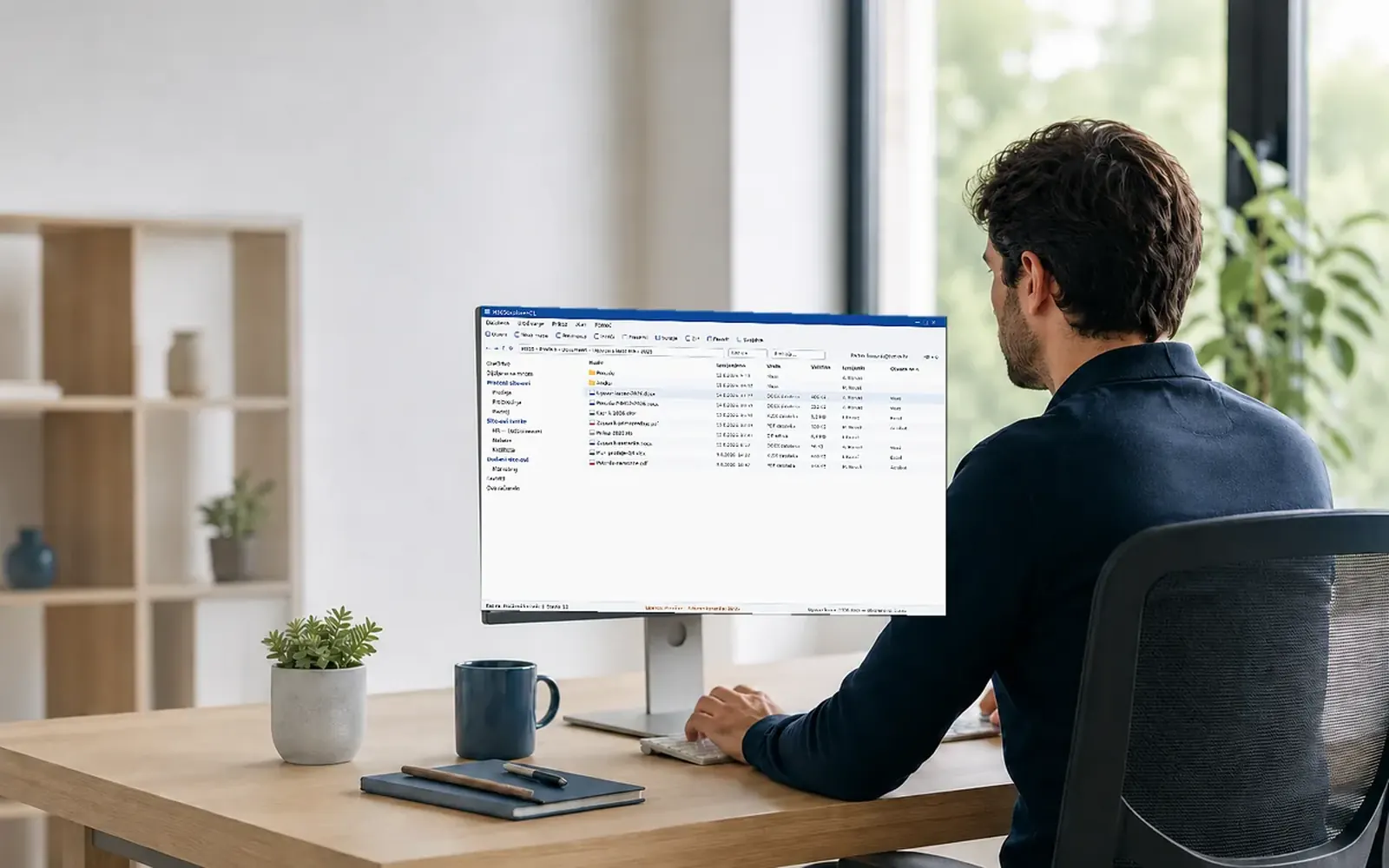

Why this is not another “mapped drive”
Tools that map the cloud as a network drive leave a cache on the computer. This application is built the other way round: the document opens at the source, and when that is not possible the working copy lives only until the end of the session and is erased by overwriting.
Your document is ready at once, with no transfer to wait for
The application transfers nothing in advance: a document opens when you ask for it, in a second, whatever the size of the library. Nothing runs in the background and nothing is written to the disk without your instruction. When you need files locally as well, there is folder matching on request — you choose which folders and when.
No local traces
No synchronisation, no permanent cache. The session workspace is erased by overwriting, not merely by deleting records.
Office works at the source
Word, Excel and PowerPoint open the document on SharePoint: AutoSave and co-authoring work normally, the file never lands on disk.
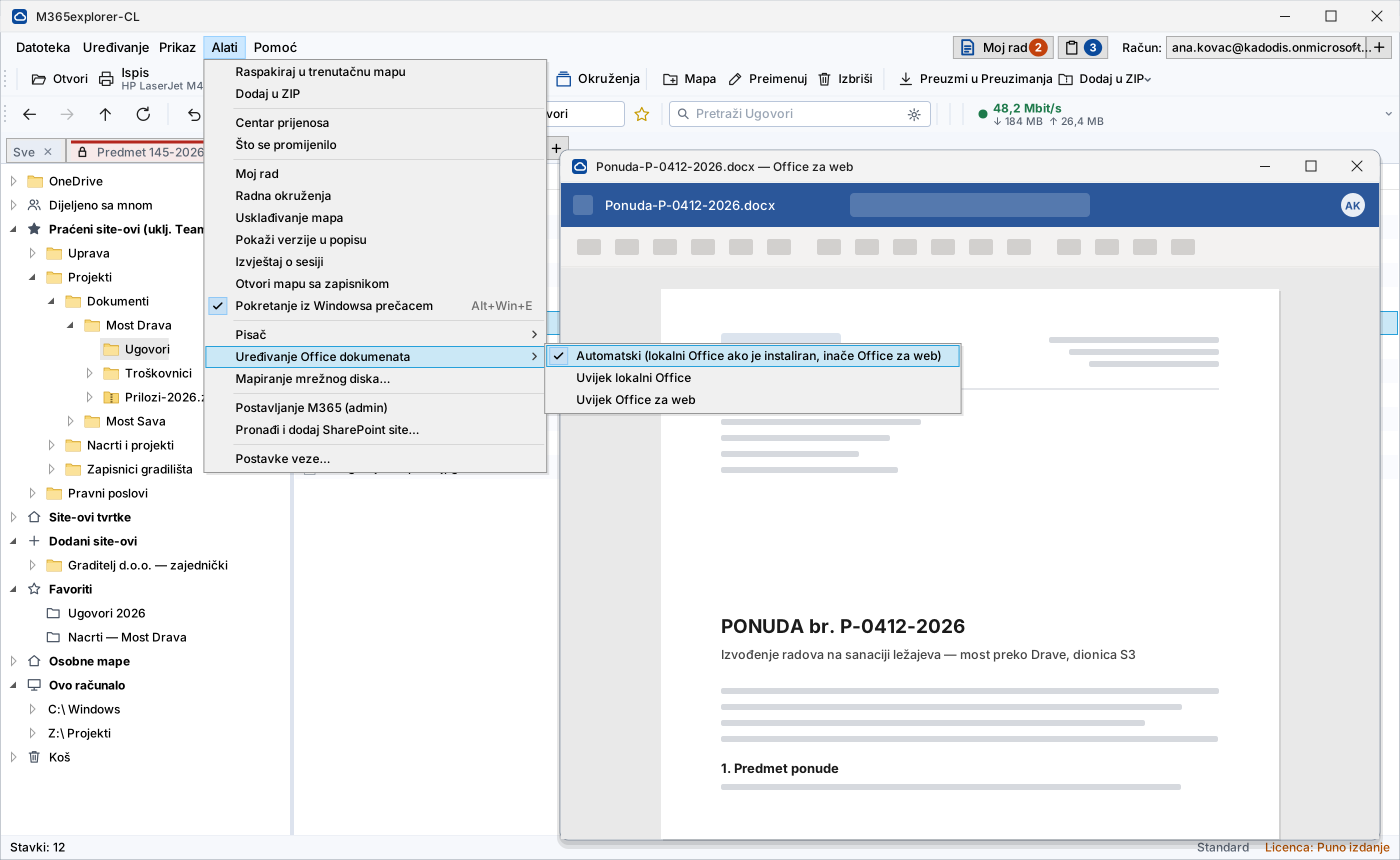
Works without installed Office too
On a computer without Word, Excel and PowerPoint, the document opens in Office for the web, in an application window — with AutoSave and co-authoring. Local files are temporarily uploaded to your OneDrive for this and returned to the disk when you close them. When Office is installed, everything works as before; the mode can be chosen in the Tools menu.
Print by dragging
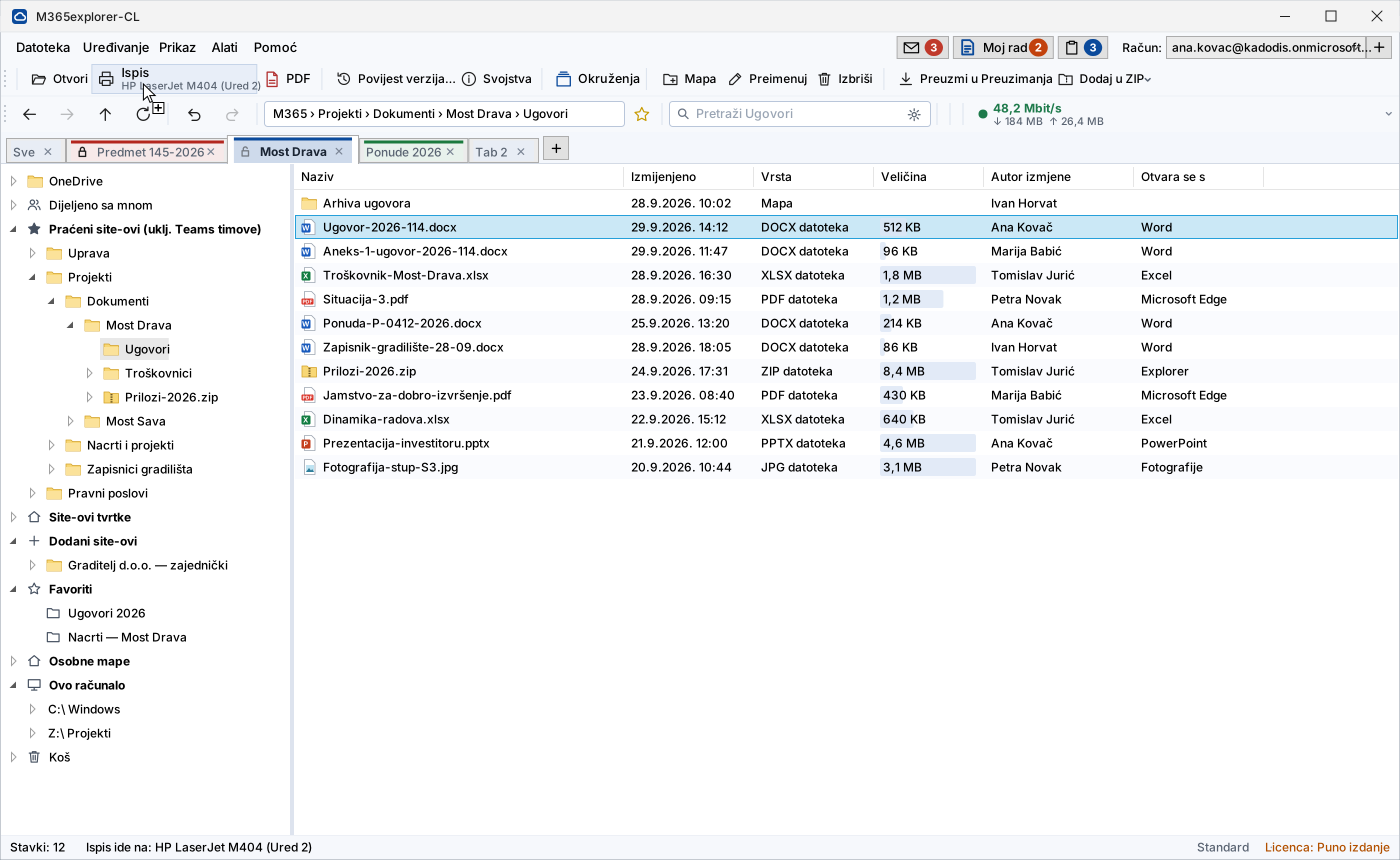
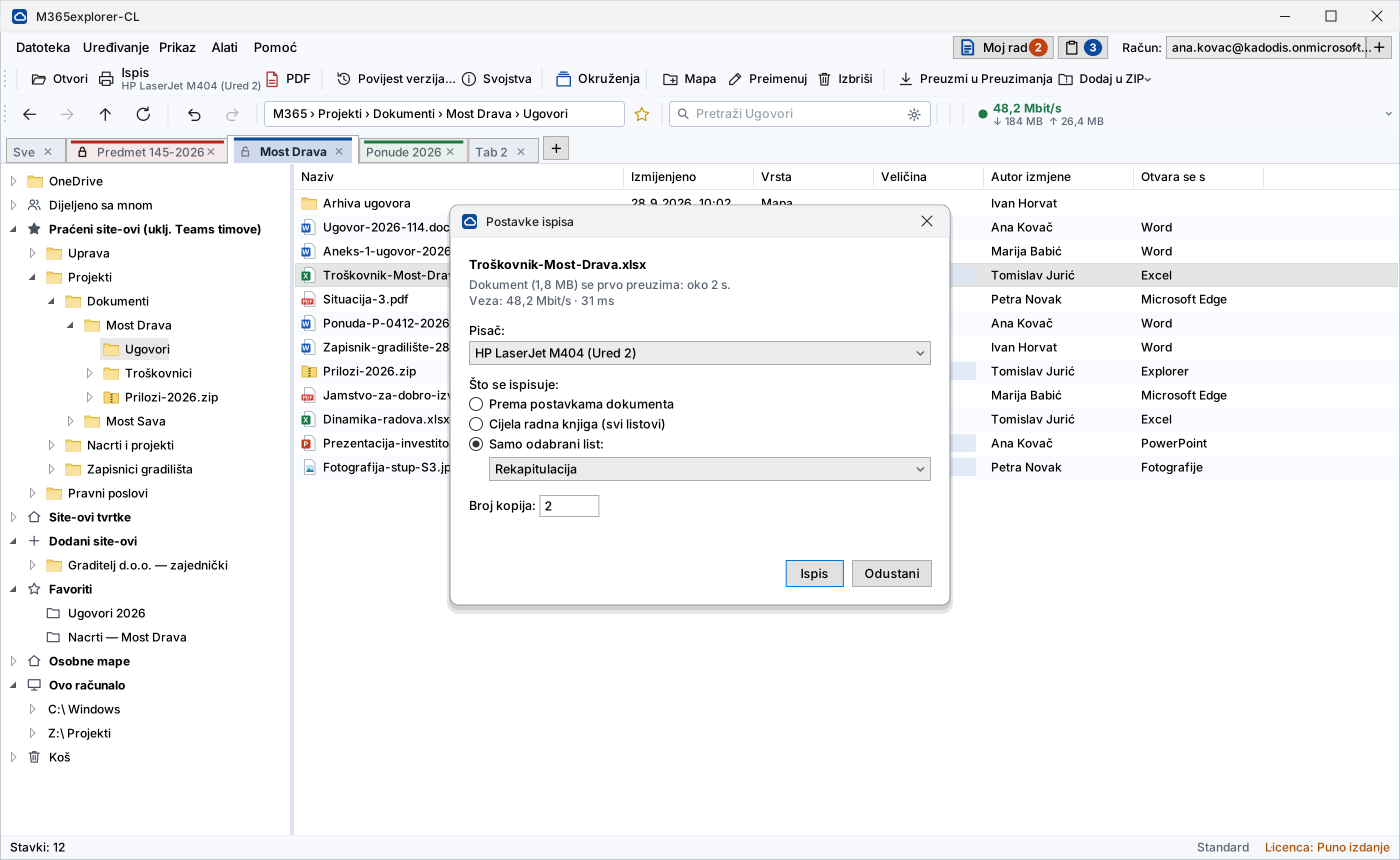
A document dropped on the printer icon goes to the chosen device — without opening Word or Excel. For spreadsheets you pick a sheet or the entire workbook.
A familiar interface
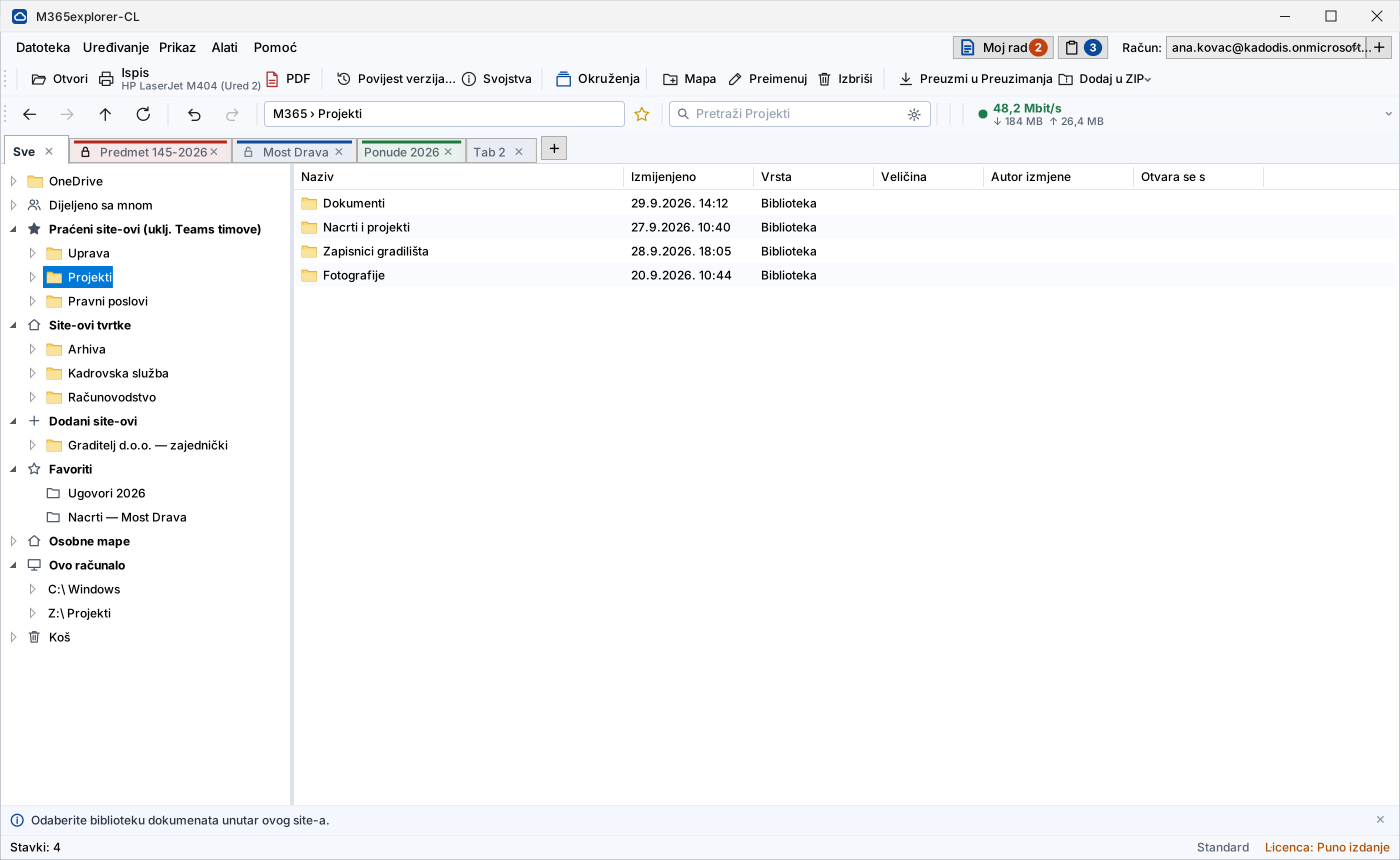
A folder tree like File Explorer and tabs for several jobs in one window. You copy or move a document from one tab to another with a right-click (Copy to… / Move to…).
ZIP as a folder
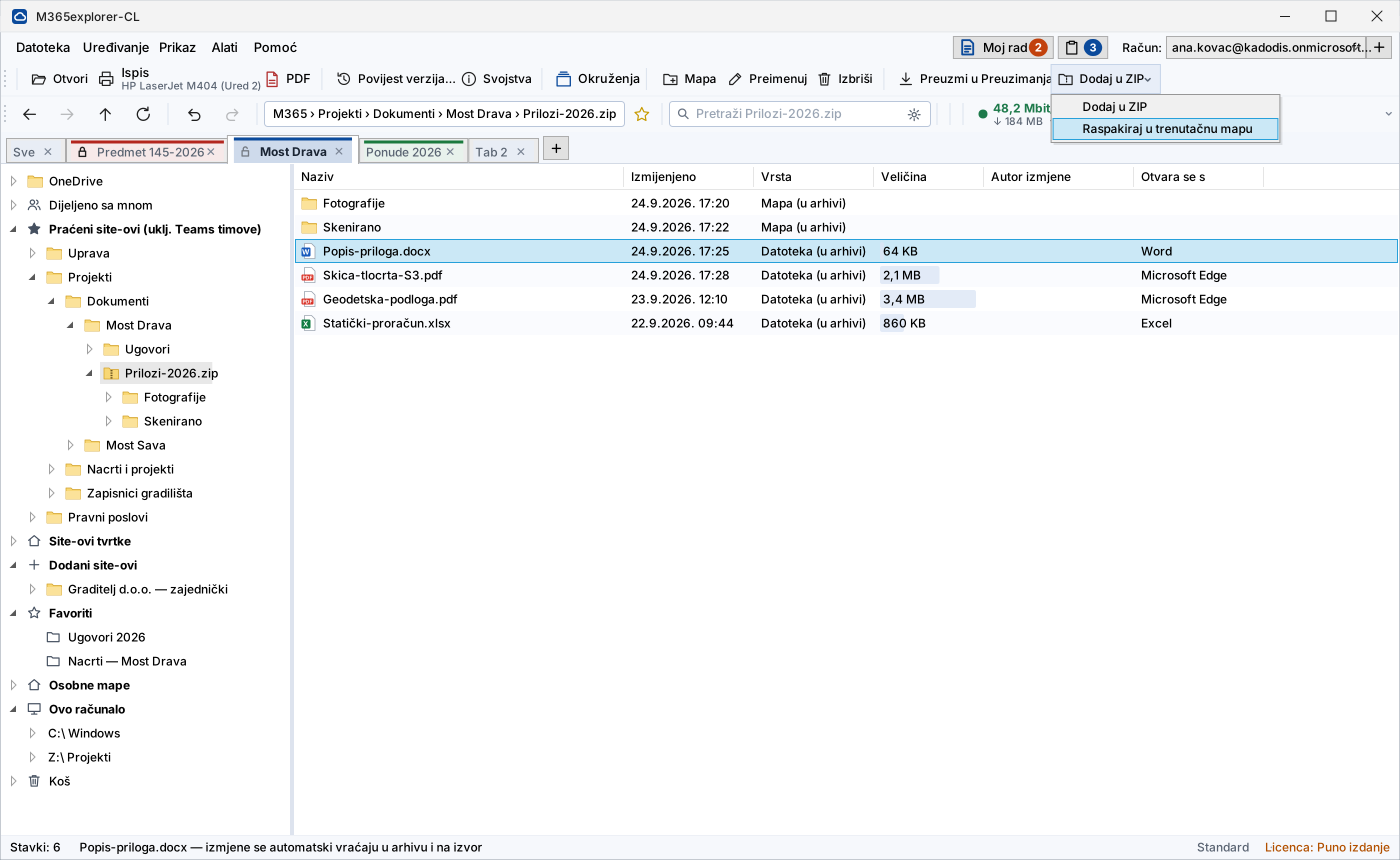
Archives open and are edited as folders. The archive sits in the session workspace and is wiped together with it; changes go back to the source at once, and files you extract from it go straight to SharePoint.
Version history
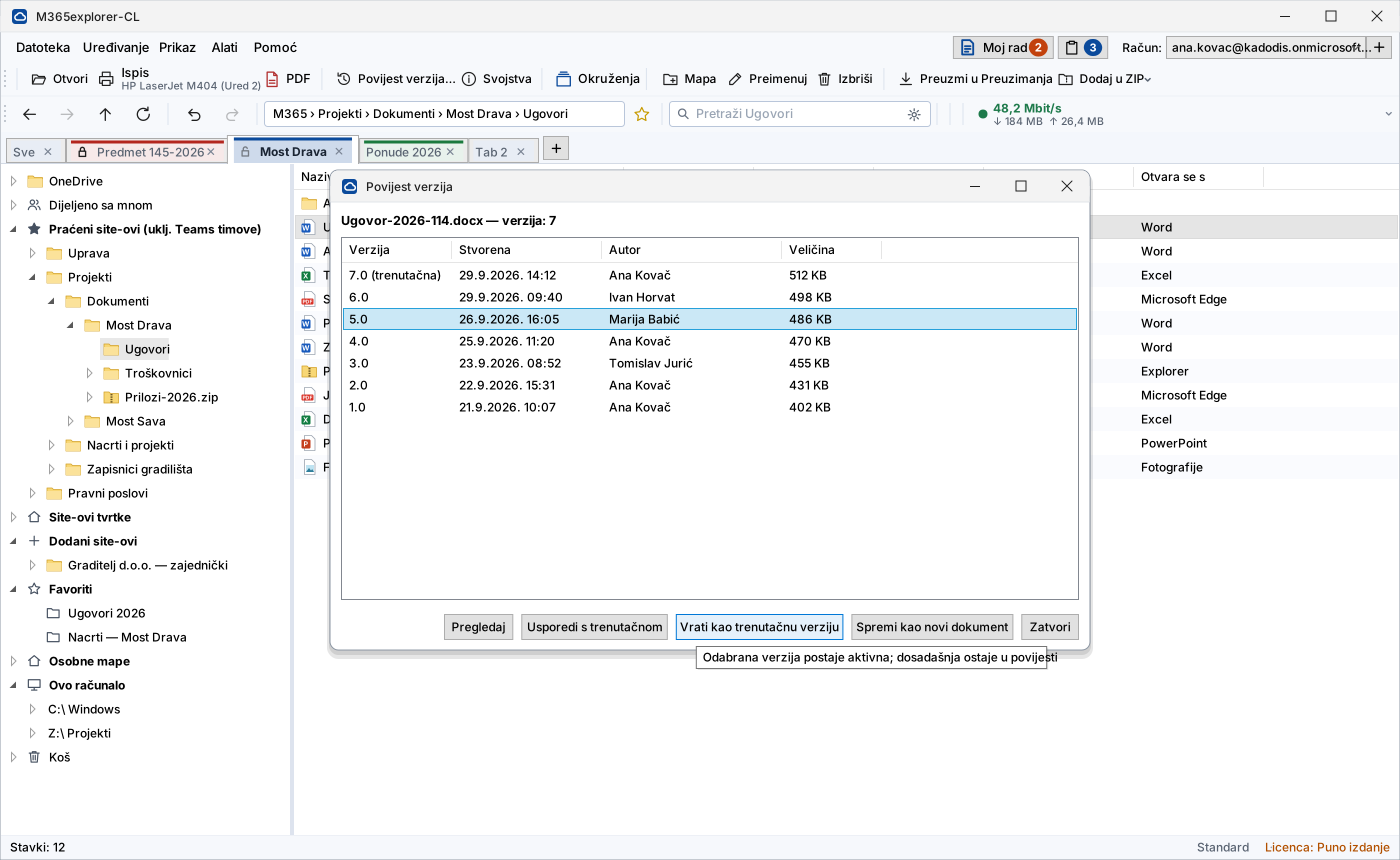
Review, restore or save an older version as a new document — directly from the application.
Works offline
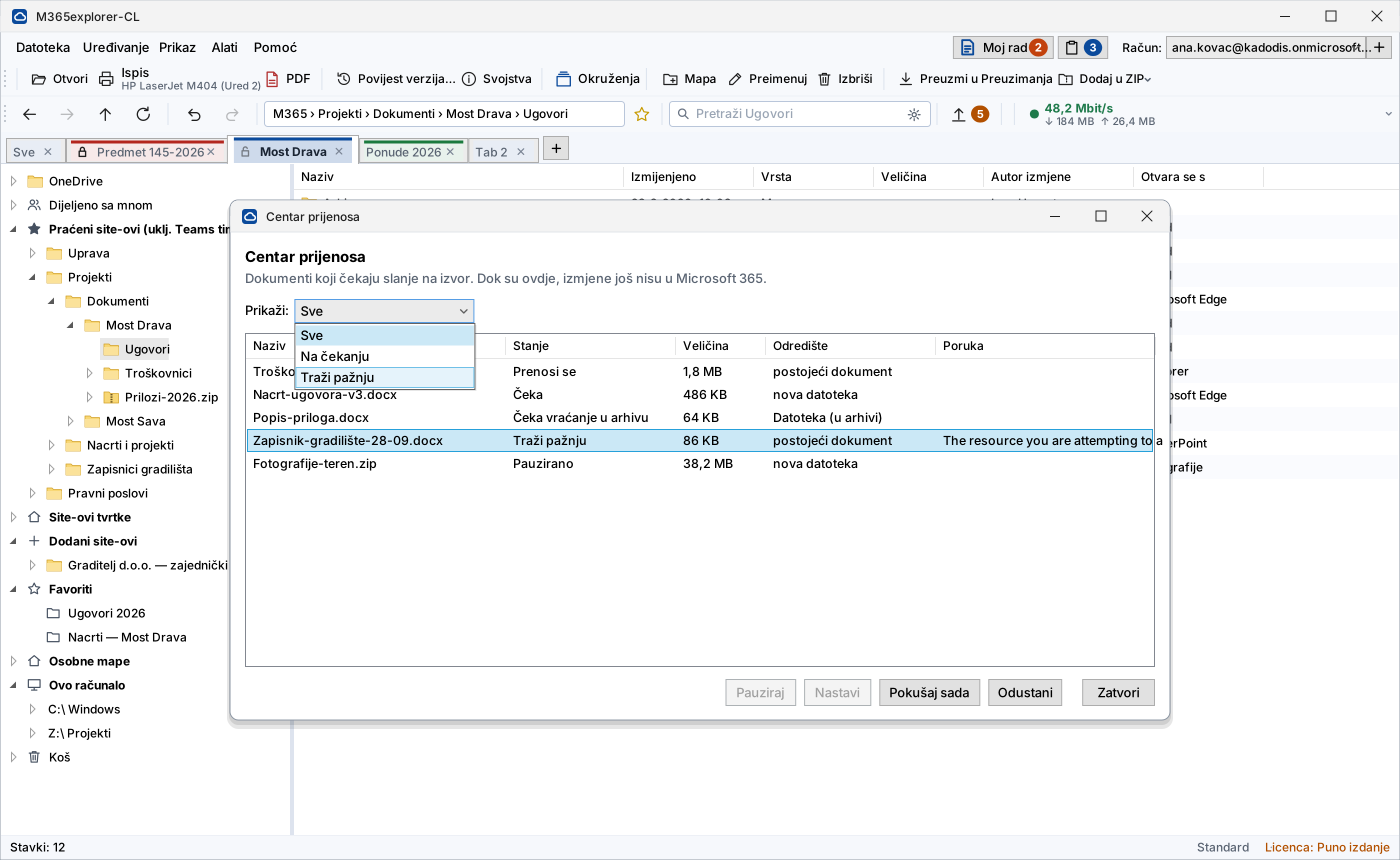
A dropped connection loses no work: changes queue up and travel to the source once the connection returns.
18 languages
Croatian, English, German, Italian, French, Spanish, Portuguese, Dutch, Polish, Czech, Slovak, Slovenian, Romanian, Norwegian, Bosnian, Serbian, Macedonian and Albanian.
One-click setup
A wizard with an administrator sign-in creates the registration, permissions and groups — no manual work in the Azure portal.
Folder matching without synchronisation
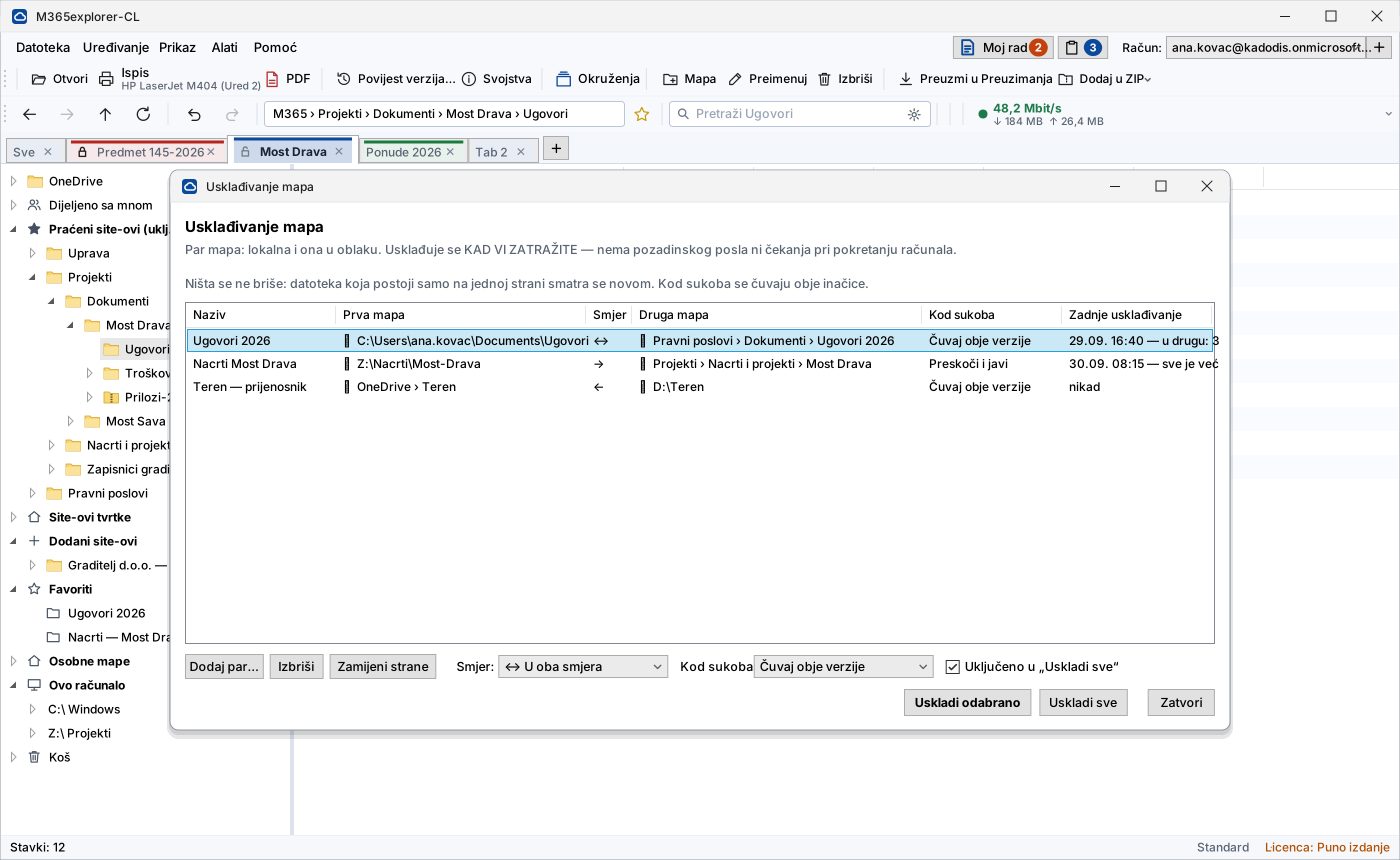
A pair of folders — on the computer and in the cloud, two disks, or two libraries — is matched when you ask. No background work and no waiting when the computer starts. Nothing is deleted, and in a conflict you choose whether both versions are kept or the older one is overwritten.
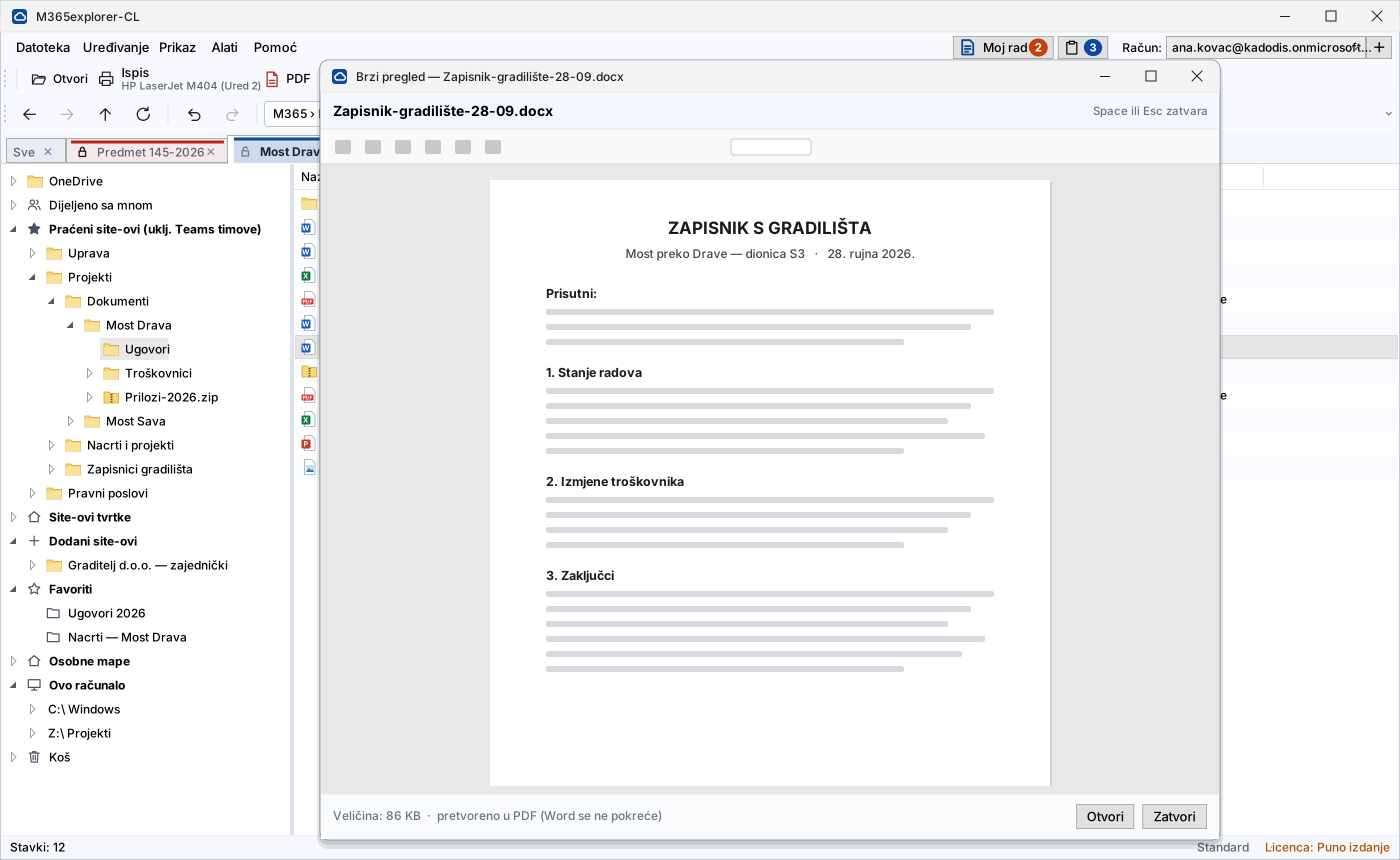
Quick preview with the Space key
PDF, Word, Excel, PowerPoint and images are shown from memory, without starting Office and without a file on the disk. Office documents are converted by Microsoft on the server, so the preview waits for neither Word nor Excel.
Search inside document content
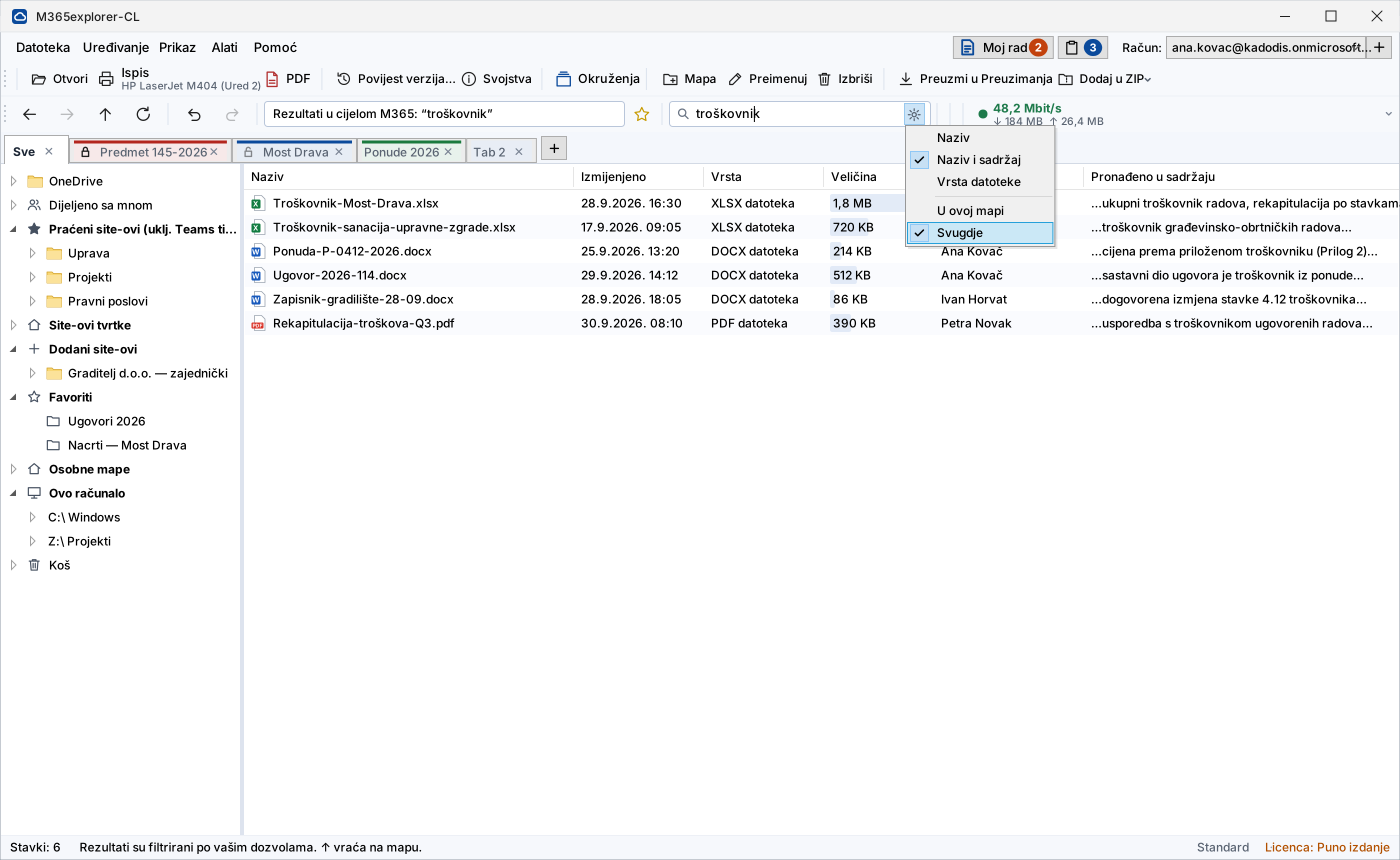
Searches every library and OneDrive you have access to, including text inside documents. Each result comes with a snippet showing where the match is. It uses the same index as search in Microsoft 365 — no local index and no extra licence.
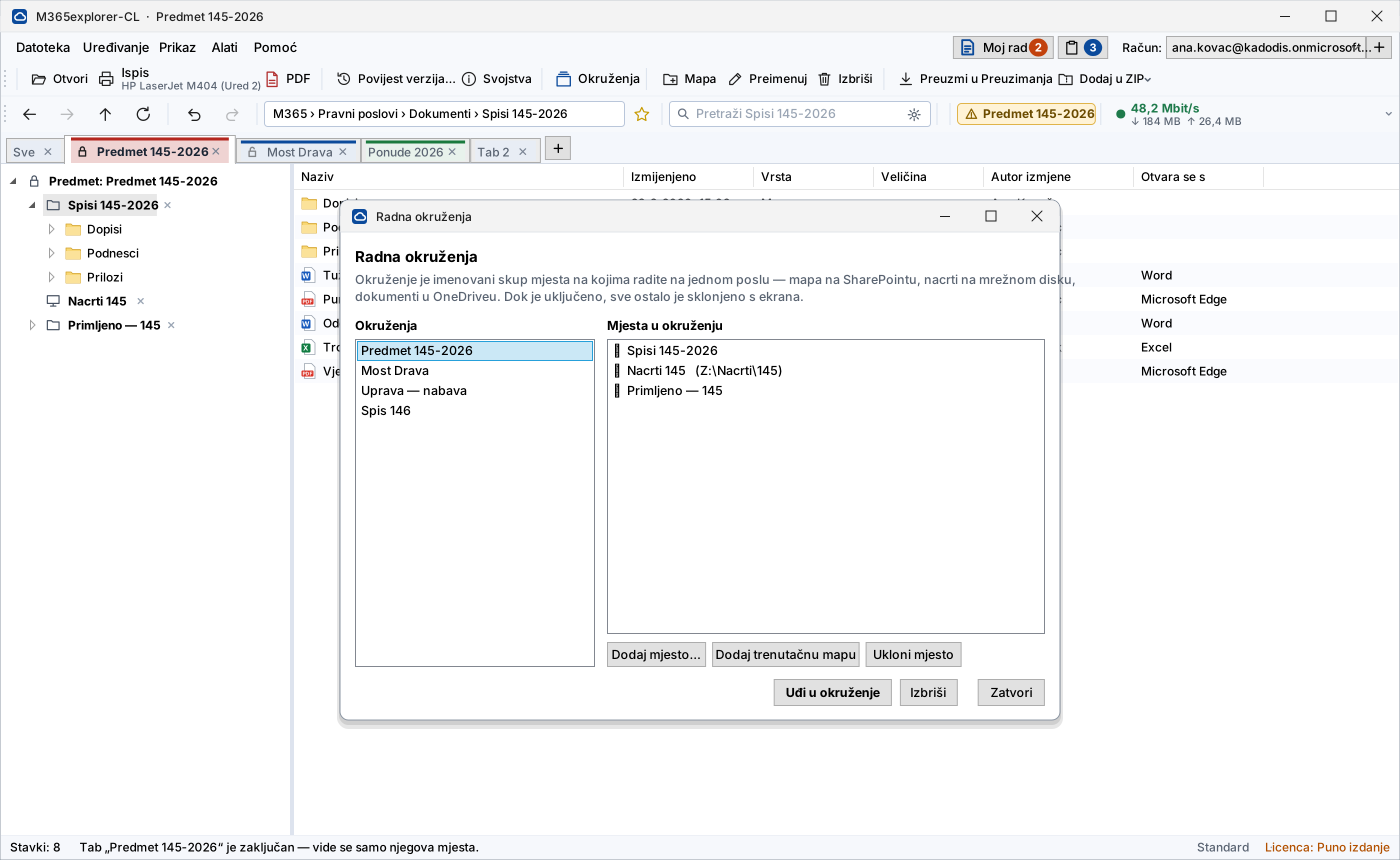
Workspaces
A named set of places you work on one job in: a SharePoint folder, drawings on a network drive, documents in OneDrive. While a workspace is on, everything else is off the screen — so files from different clients do not get mixed up. The “My work” list gathers documents from different folders for a single action — only references are kept, not copies.
Long paths
SharePoint allows around 400 characters for a path, and structures like “Year › Client › Case › Attachments” reach that easily. The application supports such paths in full — opening, transfer, printing and export work just as they do with short names.
What this means precisely: the application does not synchronise libraries and clears its working area when the session closes. Windows and Office may, independently of the application, still leave traces of their own (Office cache, recent files list, search index, print spooler). The scope and its limits are described in the security specification we send on request.
What it looks like at work
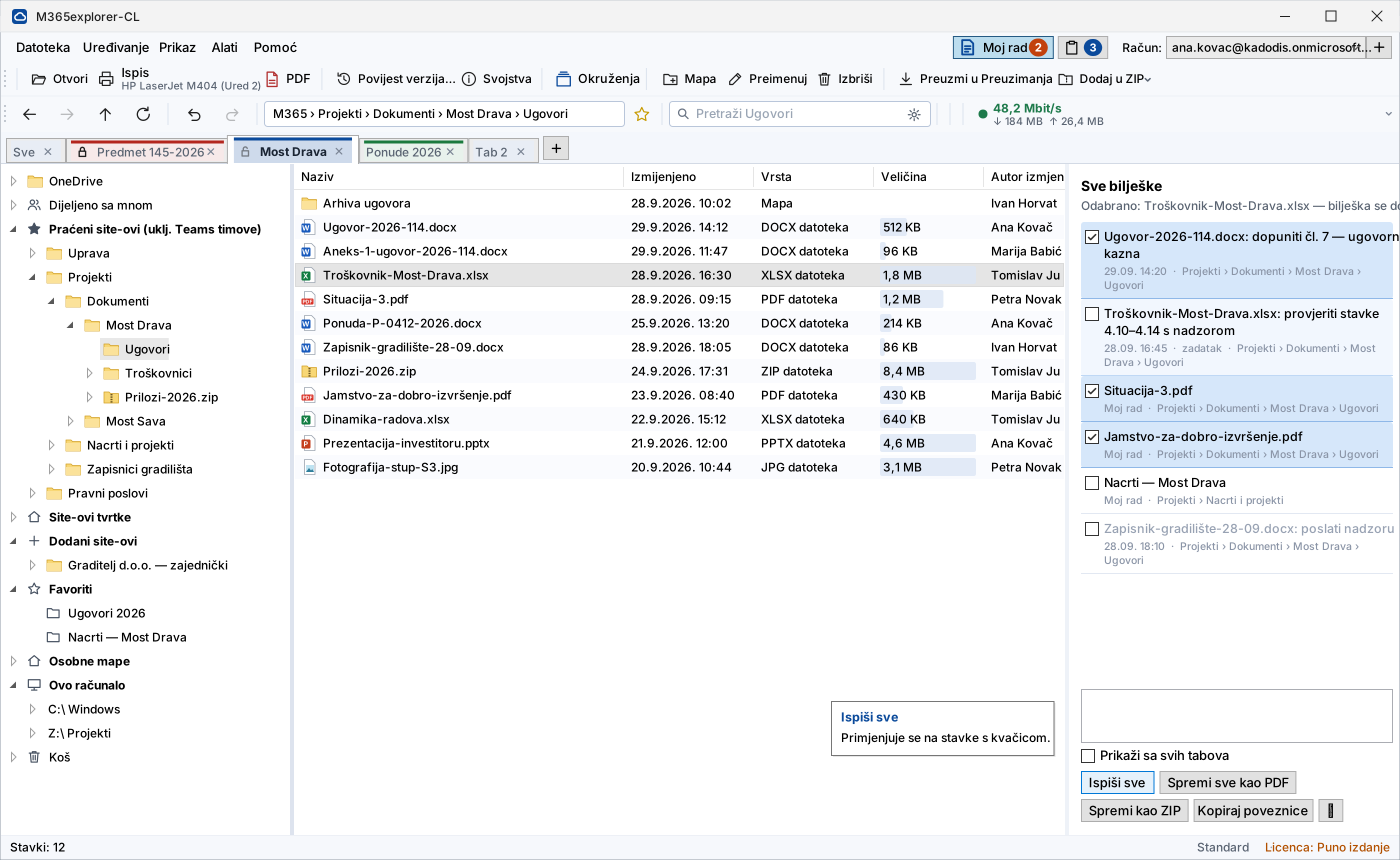
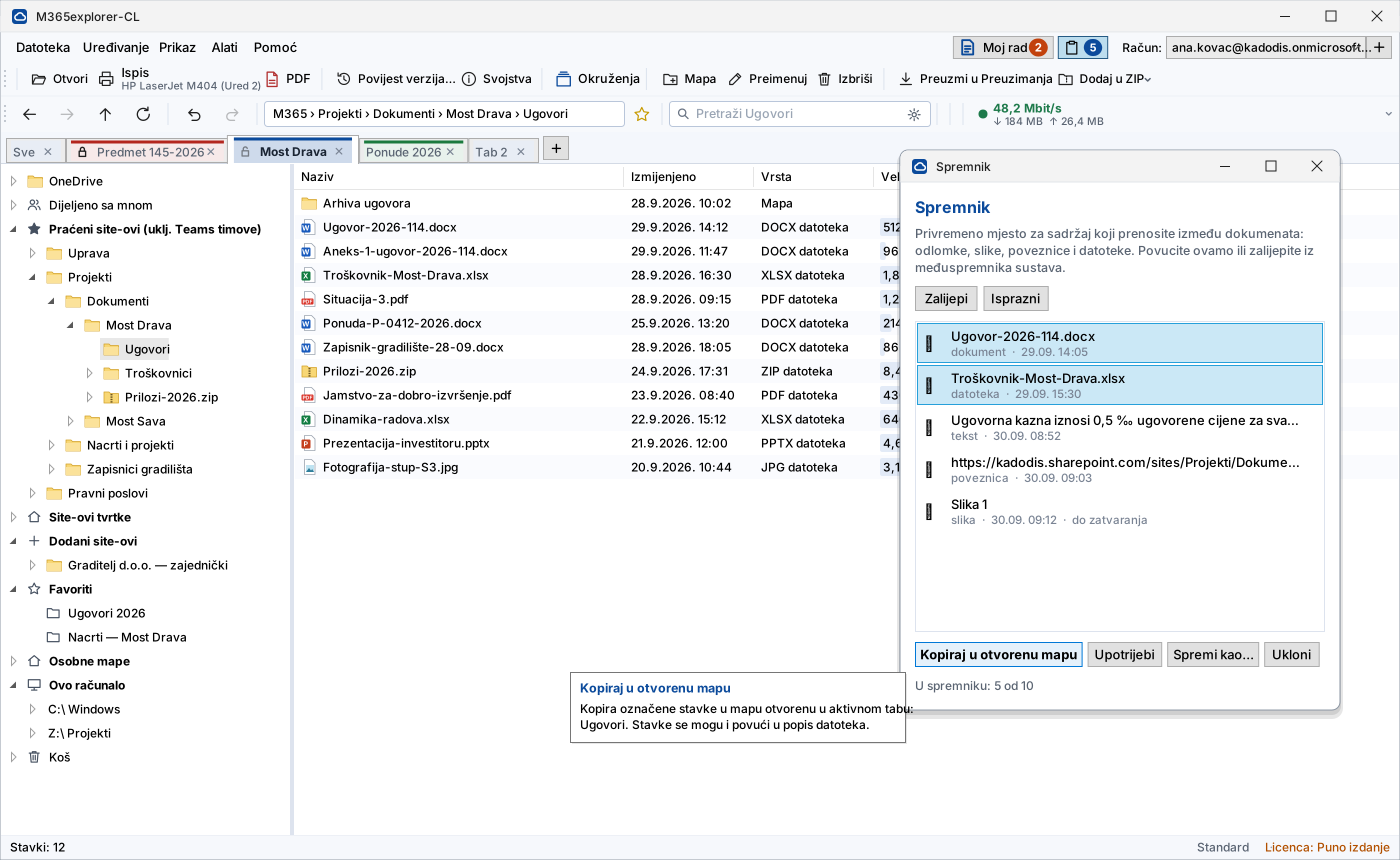
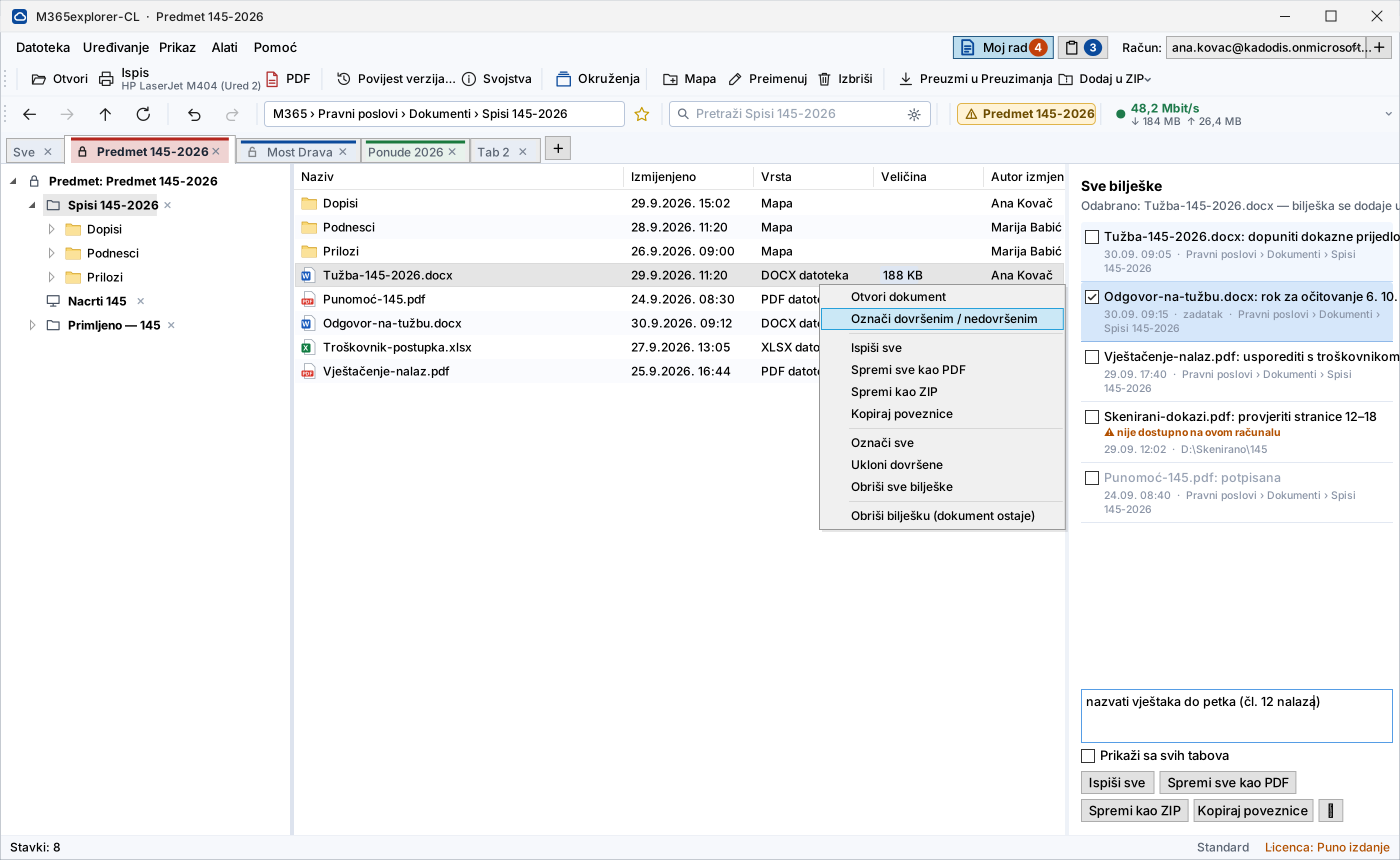
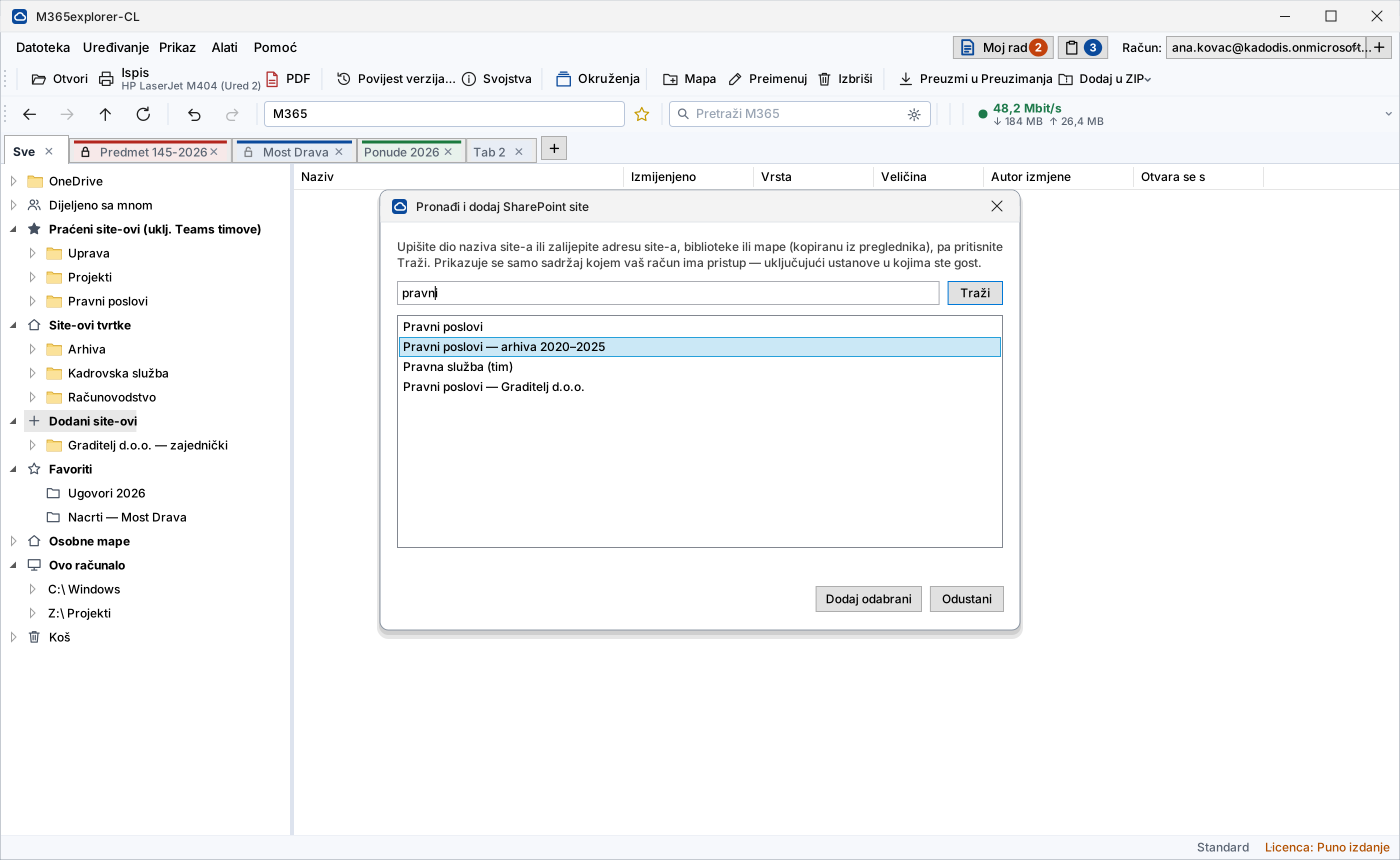
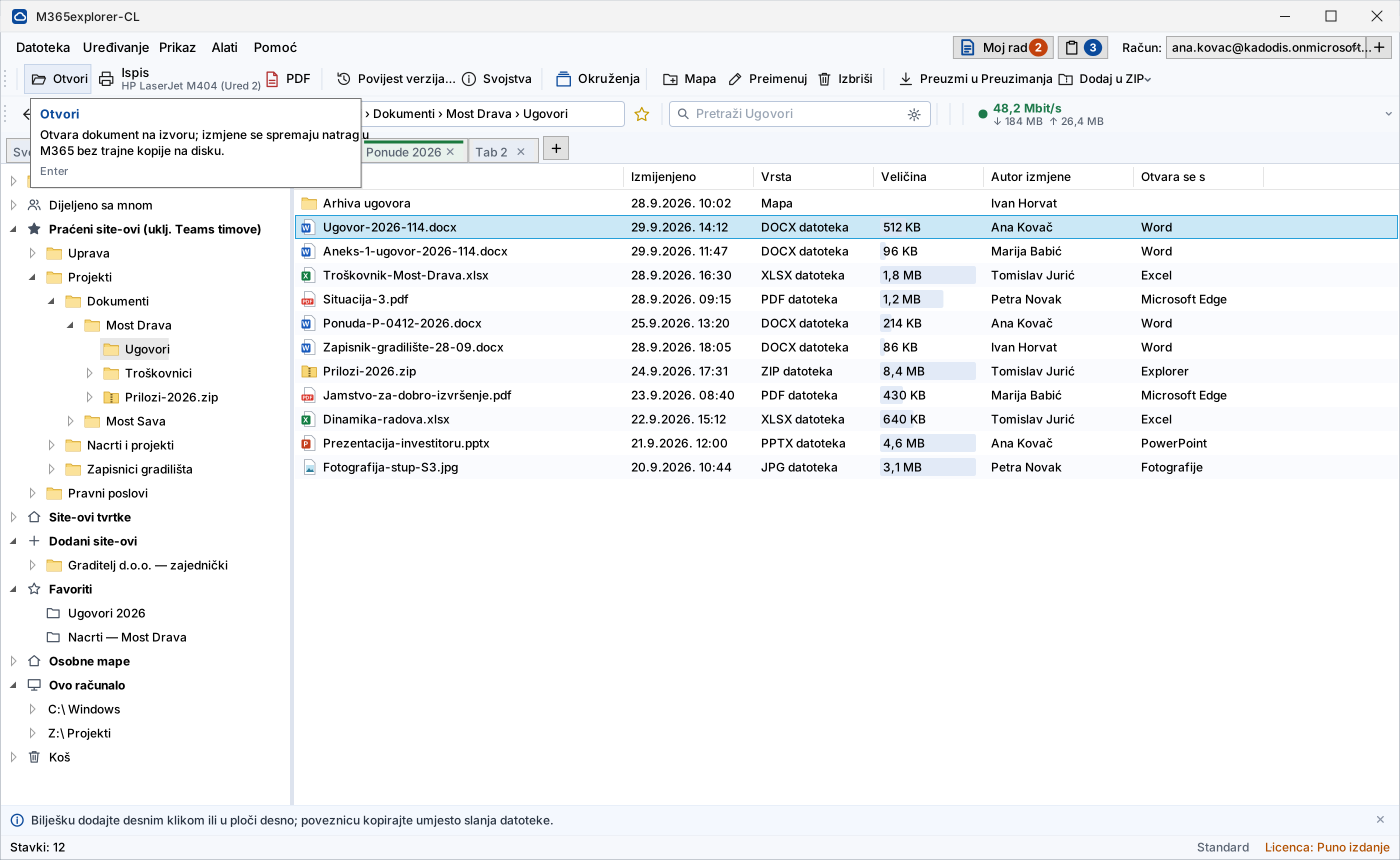
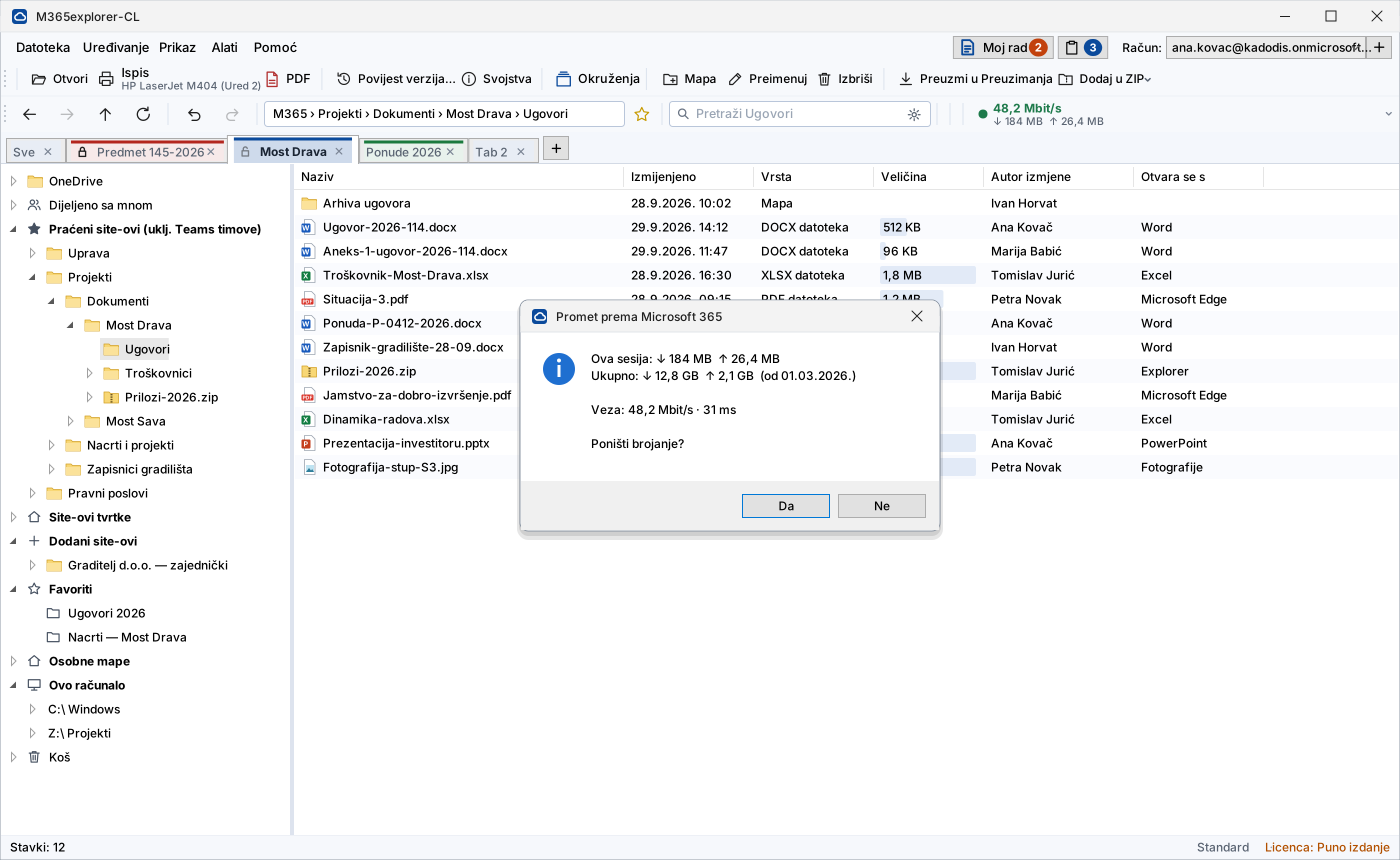
One window with a tree of sites and folders, as in File Explorer, and tabs for several jobs at once. On the right is the “My work” list with notes and set-aside documents.
Click an image to see it full size. Esc closes it, and the arrow keys move to the next one.
Who it is for
To every organisation already using Microsoft 365 that wants document work to be fast, without documents ending up on the computers. Regardless of the industry or size.
Public administration
Case files, records and personal data stay in a controlled environment, with a full history of versions and access. On field and shared computers no permanent copy is created in the application’s working area.
Law and notary offices
Case files stay in M365; the application’s working area is erased when the session closes, so no working copy of the file remains on the laptop.
Industry and manufacturing
Drawings, technical documentation and work orders are available on the shop floor and in the field, and the working area is erased on closing, so the next shift does not find the previous shift’s documents.
Accounting and finance
Client documentation and financial data without local copies on every computer — and without waiting for a sync to finish.
Healthcare and education
Patient and student data stays within the institution. For classrooms and clinics the number of computers is licensed instead of users.
Offices across all industries
Sales, purchasing, HR — wherever people work with quotes, contracts and personnel files, and computers change hands.
Same documents, different places of work
Wherever the work happens, the document stays on SharePoint — no permanent copy is created on the computer.


A tool for everyday work, not just a viewer
Everything expected of a file tool — without documents ending up on the disk. Below, things are ordered by how often they are used: first what the application is opened for every day.
One window, several jobs in tabs
The tree of sites and folders on the left, documents on the right — as in File Explorer. Each job can have its own tab; you open a new one by double-clicking an empty spot in the tab bar.
You move a document from one tab to another with a right-click: Copy to… or Move to…, with a list of open tabs and their places. These are two commands, not one with a key to hold down — the difference between “I have it in both places” and “it is no longer there” is visible before you click.
You can start the application with the Alt+Win+E shortcut from any program. The shortcut is switched on in the Tools menu ▸ “Start from Windows with a shortcut”.
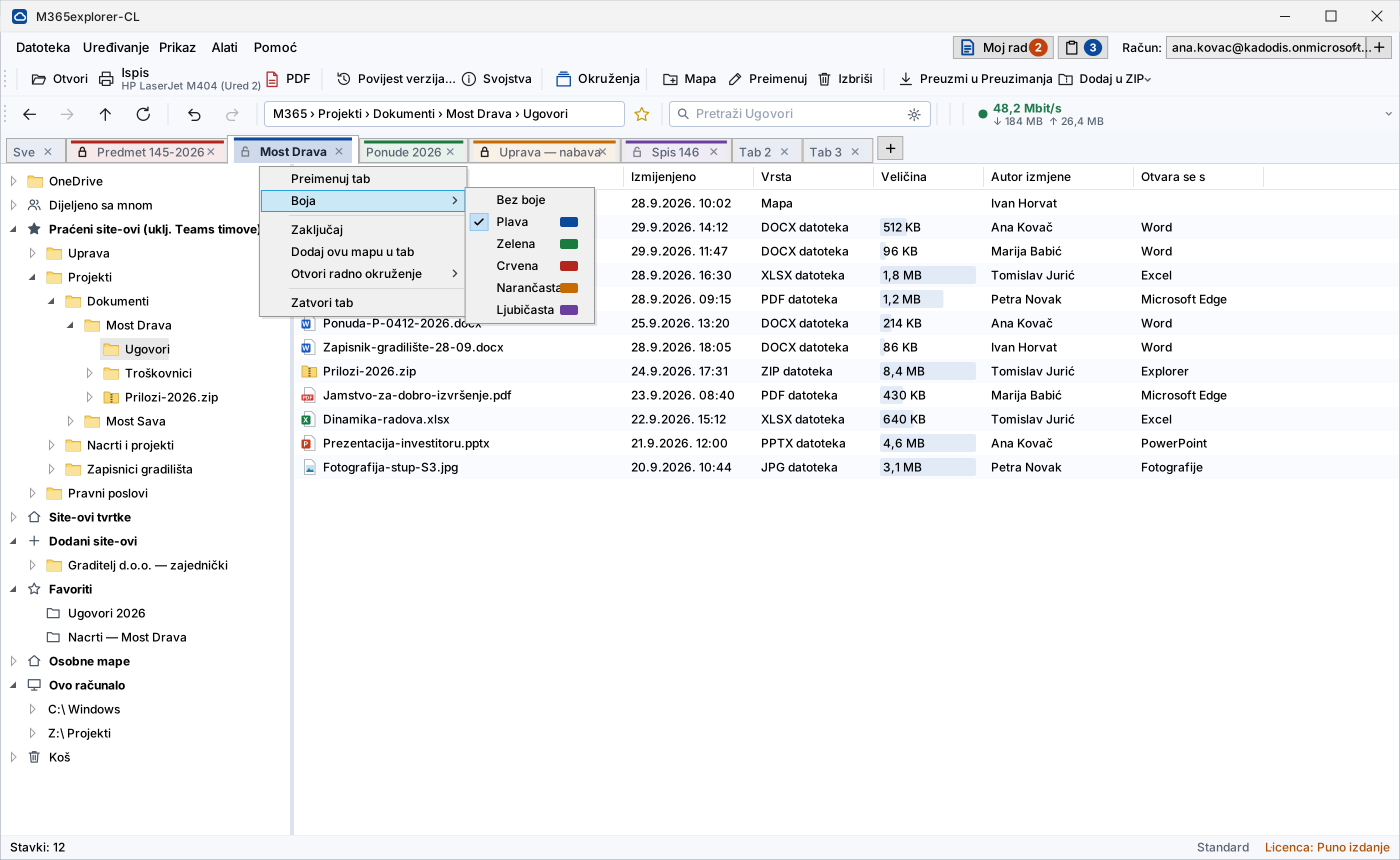
Tabs and workspaces
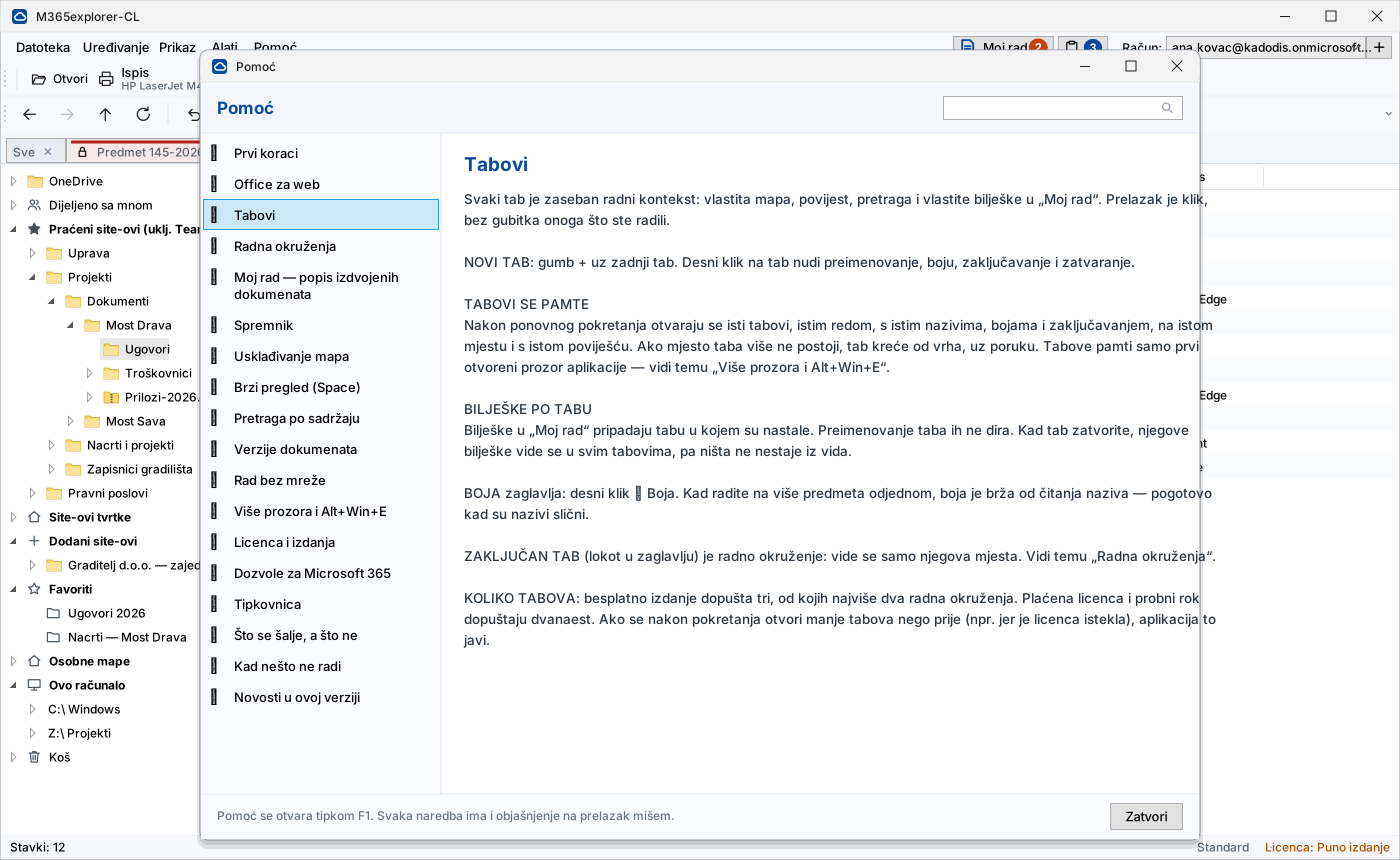
Each tab is a separate working context: its own folder, history, search and list of set-aside documents. Switching is a click, with nothing you were doing lost — not leaving and re-entering.
You add locations to a tab and lock it. Only its locations are then visible, and moving outside them is refused. This is not only protection against a mistake: in a law office the list of clients on the screen is itself information that need not be visible while you work on one case.
You add locations by right-clicking a folder and remove them with the X next to the location in the tree — even while the tab is locked. Remove them all and the tab returns to the plain view on its own. Header colour tells cases apart faster than reading names.
There are three ways out: the right-click menu, the Tools menu and a click on the badge in the toolbar. This guards against confusion, not a security boundary — that is what SharePoint permissions are for.
Folder matching on request
A pair of folders is matched when you ask. No background work, no file system watching and no waiting when the computer starts — the task compares two folders, transfers the difference and finishes.
A pair can be any combination: computer and cloud, two disks (a portable and a network one, say) or two libraries, even from different organisations. You choose the direction yourself: one way or both.
Two rules never change: nothing is deleted — a file that exists on only one side is treated as new, not as removed. In a conflict you choose whether both versions are kept, the older one is overwritten, or it is skipped with a report.
An interruption does no damage: what was transferred stays transferred, the rest waits for next time.
Quick preview with the Space key
Most openings end after three seconds of looking — “is this the right contract?”. That does not need Word to start or Excel to load: you press Space and the document is in front of you.
It shows PDF, Word, Excel, PowerPoint, images and text files. Office documents are converted by Microsoft on the server, so local Office never starts — and the preview does not end up in its list of recent files either.
The content is held in memory and disappears when the window closes. Not even the PDF preview creates a file on the disk.
Versions always at hand
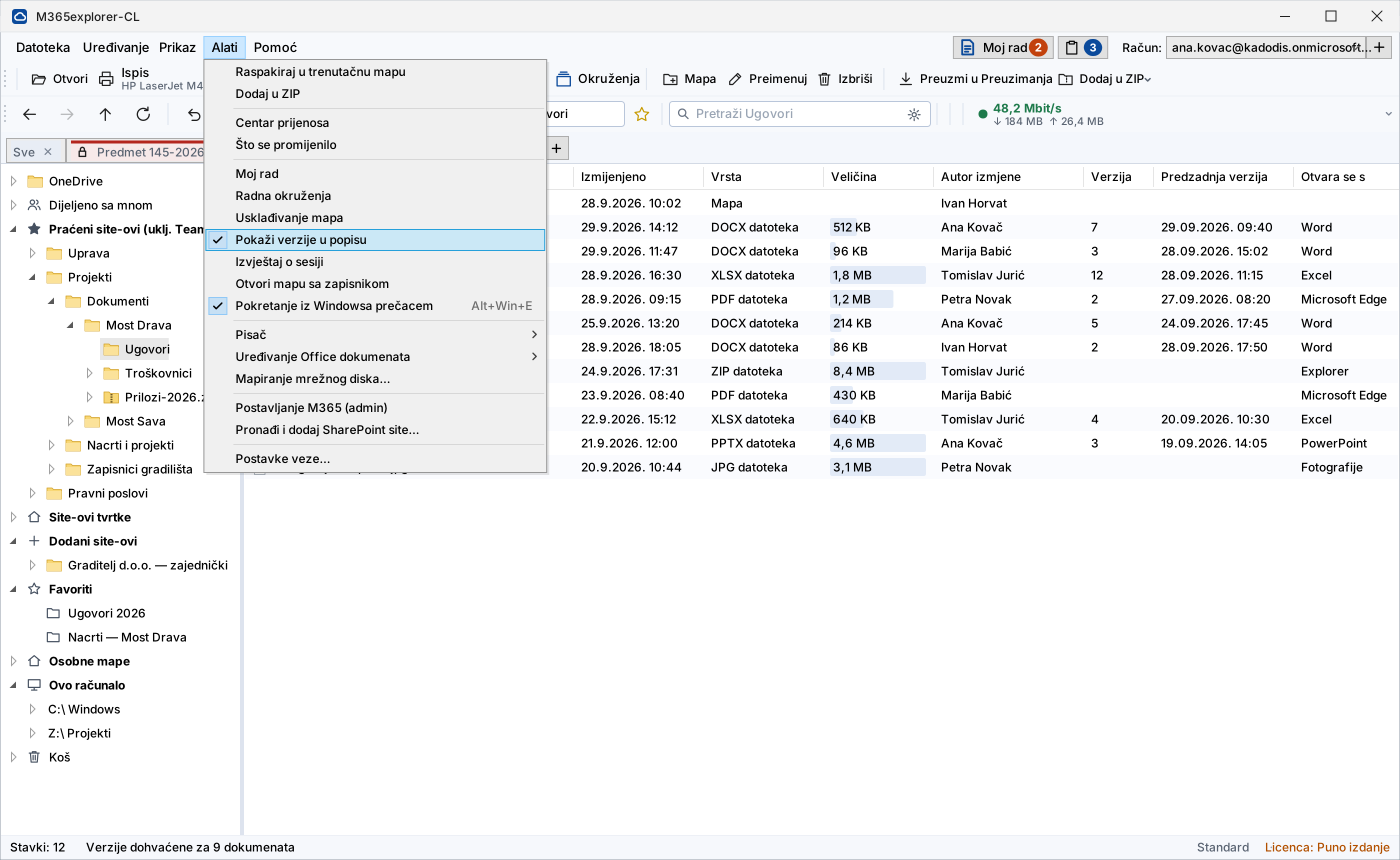
Version history opens from the right-click menu: you see who changed the document and when, and you can open an older version read-only or compare it with the current one in Word.
Restoring deletes nothing — the restored version becomes the new current one, and the previous current version stays in the history. If you change your mind, you go back.
The folder list can also show the columns “Versions” and “Previous version”. The second is deliberate: the last version is the one you are looking at, while the previous one tells you when the document was changed before that — the answer people look for when checking who touched what.
The columns fill on request, so opening a large folder stays fast.
My work — a single list
Set aside the documents and folders you are working with in one list — whether they come from SharePoint, OneDrive or a disk. You may add a note to an item, but you don’t have to. A single click on an item shows it in the folder where it is, a double click opens it.
The text decides what is remembered. An item you have written a note on is saved to your OneDrive and appears on every computer; an item without text is a passing selection for an action and disappears when you close the application. You don’t have to keep that in mind — whoever writes something down clearly wants to keep it.
The tick chooses what an action applies to: printing, PDF export, ZIP or copying links. Only references are kept, so gathering documents creates no new copy at all.
The list is per tab, so each case gathers its own documents. The notes of a tab you close do not disappear — they are visible in all the other tabs.
Features used weekly
Less often than the daily ones, but they are the reason the tool is not swapped for another.
Search inside document content
Searches every library and OneDrive you have access to, including text inside documents. Each result comes with a snippet showing the match, and you choose the scope: this folder or everywhere. It uses the same index as search in Microsoft 365, with no local index and no extra licence.
Printing by dragging
A document dragged onto the printer icon goes to the chosen device, without opening Word or Excel. For spreadsheets you pick the sheet or the whole workbook. Several documents at once print in order, from the “My work” list.
A ZIP archive as a folder
An archive opens like an ordinary folder: it is downloaded to the session workspace and wiped together with it when the session closes. Changes inside the archive go back to the source at once, and files you extract from it go straight to SharePoint.
Office works directly at the source
Word, Excel and PowerPoint open the document on SharePoint: AutoSave and co-authoring work as usual, and the file does not come down to the disk. Without installed Office, the same document opens in Office for the web, inside the application. When the connection drops, changes wait in a queue and travel to the source on their own as soon as it returns.
Traffic and connection speed in view
The toolbar shows how much traffic has been used and the measured speed. On a connection paid for by traffic — mobile internet in the field — that is what people check before starting a large transfer. The application also adjusts how long it waits for each transfer according to the measured speed.
Places mapped like drives
A SharePoint site, a library, a OneDrive folder or a network drive are added to the toolbar and stand side by side, like drive letters. You add them by searching for the name, without hunting for addresses, and mark places you return to often as favourites.
Small things you notice only when they are missing
Each of them solved a concrete hold-up in everyday work.
What exactly you get
The same documents and the same Microsoft 365 you are used to. The difference is in how they are reached: a document opens directly at the source, and no permanent copy stays on the computer.
| Property | How it works in M365explorer-CL |
|---|---|
| Files on the local disk | No permanent copy. The session workspace is erased by overwriting when you close it. |
| Working without installed Office | Documents are edited in Office for the web, in an application window. Installed Office is used when present. |
| Working after a dropped connection | Changes wait in a queue and travel to the source on their own once the connection returns. |
| Printing without opening the application | Drag a document onto the printer icon, choosing the sheet for spreadsheets. |
| Version history in the interface | In the interface itself: review, compare in Word, and restore as a new version. |
| Opening a document | At once, with no transfer to wait for — whatever the size of the library. |
| Files locally as well | Folder matching on request: you choose the folders, the direction and the moment. |
| Several accounts and organisations | Up to three M365 accounts at the same time, including accounts from other organisations. |

Pricing
One package with everything. No tiers, no deciding what you are missing. Prices are per year, per user or per computer; prices are net, and Paddle charges VAT according to the buyer’s country.
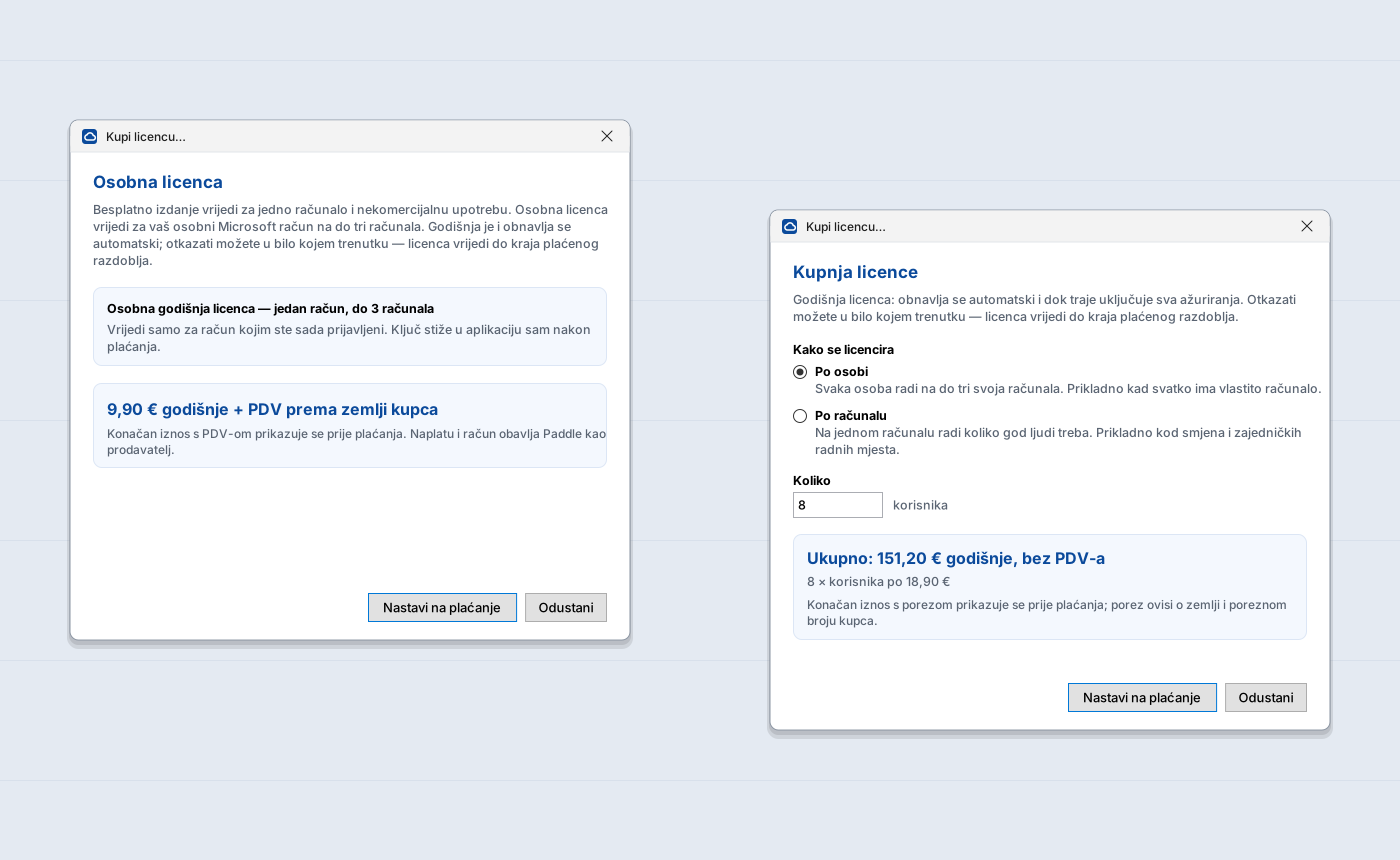
Intended for private use: one signed-in account, one computer, non-commercial. A personal Microsoft account has no SharePoint, so this edition works with your OneDrive. The toolbar shows occasional product messages — they come from our server and contain no data about you.
Choose what matches how you work. A per-person licence follows the person: they work on up to three of their own computers — desktop, laptop and the one at home. A per-computer licence follows the machine: as many people as needed work on it, which makes sense when they take turns at the same computer.
The arithmetic is simple: one person on several computers → per-person licence. Several people on one computer → per-computer licence. With two people sharing one computer in shifts, the per-computer licence is already cheaper.
What it would cost you
Enter how many people work with documents and on how many computers. The figure is indicative, in net prices; Paddle charges VAT according to the buyer’s country.
Per-person licence — up to three computers
For ordinary work: each employee has their own account and works on their own devices.
| Number of users | Regular price | Reference price |
|---|---|---|
| 1 user working alone | 24,90 € | 24,90 € |
| 2–5 users small office | 21,90 € | 21,90 € |
| 6–25 users teams and departments | 18,90 € | 18,90 € |
| 26+ users institutions and larger companies | 15,90 € | 15,90 € |
For personal use
For working with a personal Microsoft account, outside a business organisation.
| Edition | Regular price | Reference price |
|---|---|---|
| Free one computer, occasional product messages | €0 | €0 |
| Personal licence up to three computers, no messages | 9,90 € | 9,90 € |
Personal licence: €9.90 per year + VAT according to the buyer’s country (charged by Paddle).
You buy the personal licence in the application (Help ▸ Buy a licence), after signing in with your personal Microsoft account — the licence is tied to that account.
Per-computer licence — unlimited users
For shared computers: shift work, front office, reception, production floor, classroom, field device.
| Number of computers | Regular price | Reference price |
|---|---|---|
| 1 computer a single workstation | 36,90 € | 36,90 € |
| 2–5 computers one office or shift | 32,90 € | 32,90 € |
| 6–25 computers several sites or plants | 28,90 € | 28,90 € |
| 26+ computers institutions and larger companies | 24,90 € | 24,90 € |
Both kinds can run side by side: employees with their own computers per person, shared computers per computer. Tell us how you work and we will prepare a quote.
Prices are per year, per user or per computer. Prices are net; Paddle charges VAT according to the buyer’s country. The licence is paid as an annual subscription that renews automatically; you can cancel it at any time.
This price list applies to business customers — companies, sole traders, institutions and public administration. The free edition and the personal licence are intended for individuals for personal use.
The “Reference price” column shows the price on the day the product was first put on sale. It was not commercially available before then, so no earlier prices exist. This is not a discount — it is a comparison figure required by Croatian pricing rules.
The licence is paid one year in advance and renews automatically every year. You can cancel the subscription at any time; the licence then remains valid until the end of the paid period, and the next period is no longer charged.
While the licence is active, all updates are included — fixes, security patches, improvements and new translations — together with email support. Updates cost nothing extra.
What is included
A licence is valid for one year, or until the end of the paid period, and includes all updates in that period.
Associations, non-profit organisations, education and healthcare: −50 % off the regular price. On request, the licence can be paid in advance for several years: −10 % for two years or −15 % for three years. Discounts are granted by quote only and are not combined — the more favourable one applies. Rollout and training are charged separately by agreement.
Free trial — 30 days
All the features of a purchased licence — the only difference is the “trial version” label in the window title. No card, no automatic renewal.
Working with a personal Microsoft account? Then you do not need the trial — the free edition has no time limit. The trial is for business accounts, where SharePoint exists.
The trial and the free edition are available right now. Paid licences go on sale soon.
- Download the installer for your environment:
EXE One-step installation. Recommended. ZIP For networks that block .exe files. Includes instructions.Windows 10/11, 64-bit. Microsoft Office is not required. Installation requires no administrator rights. For the ZIP, choose "Unblock" in the file properties before extracting.
- Start the application and accept the license terms. Sign in with your M365 account.
- If you are an administrator, the wizard (Tools ▸ M365 setup) configures everything automatically.
- After the trial, buy a licence in the application (Help ▸ Buy a licence) or on this page, next to the price list. The licence key arrives by email, and the application retrieves and activates it by itself.
Frequently asked questions
Does Microsoft Office have to be installed on the computer?
No. If Word, Excel and PowerPoint are installed, the application uses them and the document opens directly at the source. If they are not, the document opens in Office for the web inside the application, with AutoSave and co-authoring. Editing requires a Microsoft 365 licence that includes Office for the web — almost all business plans do; without it the document opens read-only. For editing, local files are temporarily uploaded to your OneDrive, and after closing they are returned to the disk and deleted from the cloud. Old formats (.doc, .xls, .ppt) from the cloud open for viewing only; to edit such local files, save them in the new format (.docx, .xlsx, .pptx).
How does the application work alongside the OneDrive client?
They work independently of each other and can sit on the same computer. The application reaches documents directly through the Microsoft Graph interface, so it neither requires the OneDrive client nor affects how it works. If you also need files locally, you can use folder matching on request — it runs when you ask and works with folders you choose yourself.
Can I start on my own, without administrator approval?
Partly, and that is often enough for a first assessment. The application installs without administrator rights and first asks for full access at sign-in; if your organisation does not allow that without approval, it falls back to a narrower scope and works with your own OneDrive. Company SharePoint sites require a one-time administrator approval, done with the wizard in about a minute. It also depends on your tenant settings: some organisations disallow any user consent, and then an administrator is needed from the start.
Do we need a server or special infrastructure?
No. The application is installed on computers and works directly with your Microsoft 365. No database, no server, no data migration.
Does anything change in our SharePoint?
No. Documents, permissions and versions stay where they are. The application is just a different way to access them; if you stop using it, nothing is lost.
What is transmitted to you as the vendor?
Only your organisation identifier, pseudonymised (hashed) user and computer identifiers and the application version, for licence verification and counting computers. Never document contents, file names or names of people.
What happens when a license expires?
You get a warning 14 days ahead and another 14 days of grace. After that the application stops running, but your documents remain untouched in M365 and available through standard tools.
Windows shows a warning when the installer starts — is that a problem?
No. The installation packages are not yet signed with a code-signing certificate (the certificate is being issued), so SmartScreen may show an “Unknown publisher” warning. Click “More info”, then “Run anyway”. To make sure the package is genuine and unaltered, check it against the SHA-256 checksum we publish with every package (file SHA256.txt).
How long does rollout take?
For a trial: install and sign in, a few minutes. An administrator can set up the registration and groups with the wizard in one step, with no manual work in the Azure portal.
Enquiry or quote
Tell us your user count and environment — we reply within 2 business days. Enquiries reach info@kadodis.hr.
Buy the licence directly in the application (Help ▸ Buy a licence) or on this page, with the “Buy” button next to the price list. Payment is processed by Paddle.com, which also issues the invoice with VAT. After payment the licence key arrives by email and the application retrieves it by itself. We send a written quote only for discounts (associations, education, healthcare, payment for several years in advance) or special arrangements — in that case send us the number of users or computers through the form.
Service provider details
KADODiS, obrt za informatičke usluge, owner Slaven Crnjac · Stjepanova ulica 8, Hrastina Samoborska, 10430 Samobor, Croatia · Croatian Craft Register, MBO 97950351 · OIB 55887563264 · info@kadodis.hr · The business is not registered for VAT. Prices are net; VAT is charged by Paddle.com as the seller (Merchant of Record) according to the rules of the buyer’s country.
Written complaints are accepted at the registered address or at info@kadodis.hr; we reply in writing within 15 days and keep a record of complaints.
Data protection · Sales terms · Refunds · Licence agreement (EULA)
M365explorer-CL is not a Microsoft product and is not affiliated with Microsoft. Microsoft, Microsoft 365, SharePoint, OneDrive and Windows are trademarks of Microsoft Corporation.

Data protection
The controller is KADODiS, obrt za informatičke usluge, Stjepanova ulica 8, Hrastina Samoborska, 10430 Samobor, Croatia (info@kadodis.hr). Through the enquiry form we collect your name, email, company name, user count and message, solely to answer your enquiry and prepare a quote (legal basis: consent and steps taken at your request before entering into a contract). We do not sell or disclose personal data; it is processed only by the processors and recipients listed below, to the extent needed for their task. The data is not used for automated decision-making or profiling.
Processors and recipients
- Hosting: the website and the licence server run on a server of Hetzner Online GmbH in Germany, which processes the data on our behalf as a processor.
- Server logs: for every request the server records the IP address, time, requested address, browser details and the result of the request, for security and troubleshooting (legal basis: legitimate interest). Logs are kept for up to 30 days.
- Cloudflare, Inc. (USA): the Cloudflare Turnstile protection against automated abuse on the enquiry form and in the purchase dialog is loaded from Cloudflare’s servers and processes the IP address and technical details of the browser and device to check that the request is not sent by a bot; it sets no tracking cookies (legal basis: legitimate interest in protecting the forms). If the site’s traffic passes through Cloudflare’s network, Cloudflare also processes the visitor’s IP address. The transfer of data to the USA is based on the EU-U.S. Data Privacy Framework, in which Cloudflare participates.
- Licence server (KADODiS): during licence verification the application sends the M365 organisation identifier (tenant ID), pseudonymised (hashed) user and computer identifiers and the application version; for a purchased licence we also keep the purchaser’s email. The purpose is verifying the licence and the number of computers and supporting invoicing and renewal (legal basis: performance of a contract and legitimate interest). The data is kept for as long as the licence runs and afterwards for as long as tax and accounting rules require. Document content, file names and user names are never sent.
- Free edition: for a personal Microsoft account the licence server stores a pseudonymous account hash and a pseudonymous hash of the one computer on which the free edition is used, with the dates it was first and last seen, solely to apply the one-computer rule (legal basis: performance of a contract). These data reveal no name, email or work content; the record is replaced once the computer has not been seen for 30 days.
- Microsoft (Microsoft Ireland Operations Ltd): we send email — replies to enquiries and licence keys — through the Microsoft 365 service. When you enter a domain in the purchase dialog, the licence server checks at login.microsoftonline.com whether an organisation with that domain exists in Microsoft 365 and retrieves its identifier (tenant ID); only the domain is sent to Microsoft.
- Paddle.com Market Ltd (United Kingdom): payments are processed by Paddle as an independent controller and seller (Merchant of Record); Paddle’s privacy notice applies to that data. Paddle.js is loaded from Paddle’s servers only when a checkout is opened and may then set cookies needed for the payment. From Paddle we receive the name, email, country, company name, tax number and subscription status, for issuing and renewing the licence and for our business records (legal basis: performance of a contract and legal obligations). Card details never reach us. When you buy on this page, the domain and email you enter are sent to our licence server, which passes them to Paddle to prepare the order.
Cookies and browser storage
Cookies and browser storage: this site uses no tracking cookies and no third-party analytics, so cookie consent is not required. With your consent we store only your language choice and the consent record itself, locally in the browser (localStorage). You can withdraw consent by clearing site data in your browser.
Retention and your rights
Retention: at most 12 months from the last contact, except where tax law requires longer retention of records of concluded business. You have the right of access, rectification, erasure, restriction, portability and objection, and the right to lodge a complaint with the Croatian Personal Data Protection Agency (AZOP). Send requests to info@kadodis.hr.
Sales terms and right of withdrawal
Licences are intended primarily for business users; the personal licence is intended for individuals for private use. A licence is sold for a period of one year, as a subscription that renews automatically every year. You can cancel the subscription at any time; the licence then remains valid until the end of the paid period, and the next period is not charged. Prices are net; Paddle charges VAT according to the buyer’s country. Our order process is conducted by our online reseller Paddle.com (Paddle.com Market Ltd), which is the Merchant of Record for all our orders: it handles payment, issues the invoice with VAT according to the rules of the buyer’s country and handles order-related enquiries and returns. All customers, in Croatia and abroad, pay the same way, and the automatic yearly renewal is also charged through Paddle. The licence to use the application itself is granted by KADODiS under the licence agreement (EULA) you accept when you start the application.
Right of withdrawal and refunds
Consumers (natural persons buying outside their trade or profession) have the right under Croatian consumer protection law to withdraw from the contract within 14 days without giving a reason. We give this option to all customers, consumers and businesses alike: within 14 days of the first purchase or of each yearly renewal you can request a refund of the full amount paid, without giving a reason and even though the licence has already been delivered and activated, as described in the refund policy. After a refund the licence is revoked. The free 30-day trial allows evaluation before purchase.
Complaints, governing law and disputes
Written complaints can be sent to our registered address or to info@kadodis.hr; we reply in writing within 15 days. Croatian law applies. Disputes fall under the competent court in Zagreb, without prejudice to consumers’ right to bring proceedings before the court of their place of residence and to the protection given to them by the mandatory rules of the country where they have their habitual residence.
Alternative dispute resolution: a consumer may submit a proposal to an alternative consumer dispute resolution body under the Croatian Act on Alternative Consumer Dispute Resolution; the list of these bodies is published by the ministry responsible for consumer protection. KADODiS is not obliged and does not agree to take part in proceedings before an alternative consumer dispute resolution body, unless the law requires it.
Refunds · Licence agreement (EULA) · Data protection
M365explorer-CL is not a Microsoft product and is not affiliated with Microsoft. Microsoft, Microsoft 365, SharePoint, OneDrive and Windows are trademarks of Microsoft Corporation.
Refunds
You can request a refund within 14 days of the first purchase or of each yearly renewal, without giving a reason. Send the request to Paddle — through the link in the payment confirmation email or at paddle.net — or write to us at info@kadodis.hr. Paddle returns the money to the same payment method.
After a refund the licence is revoked at once. After 14 days no refund is given; the licence then remains valid until the end of the paid period, and you can cancel the renewal at any time.
These rules do not limit consumers’ statutory rights.
Paddle — buyer support (paddle.net) · info@kadodis.hr · Sales terms
Licence agreement (EULA)
This is the end user licence agreement you accept when you first start the M365explorer-CL application. The Croatian text is authoritative.
The licence agreement has not been translated into this language, so the English translation is shown. The Croatian text is authoritative.

Try it on your own documents
30 days of full functionality, no card and no obligation. If it does not suit you, simply uninstall — no trace remains in your M365.
Download the 30-day trial